Toolzz Analytics
Toolzz Analytics is one of the add-ons of Toolzz AI! It is the module responsible for handling the management of interactions between the Agent and the user, allowing you to track the cost per question and the total cost in specific periods, facilitating budget management and allowing strategic adjustments in the use of AI resources to keep the operation efficient and within financial planning.
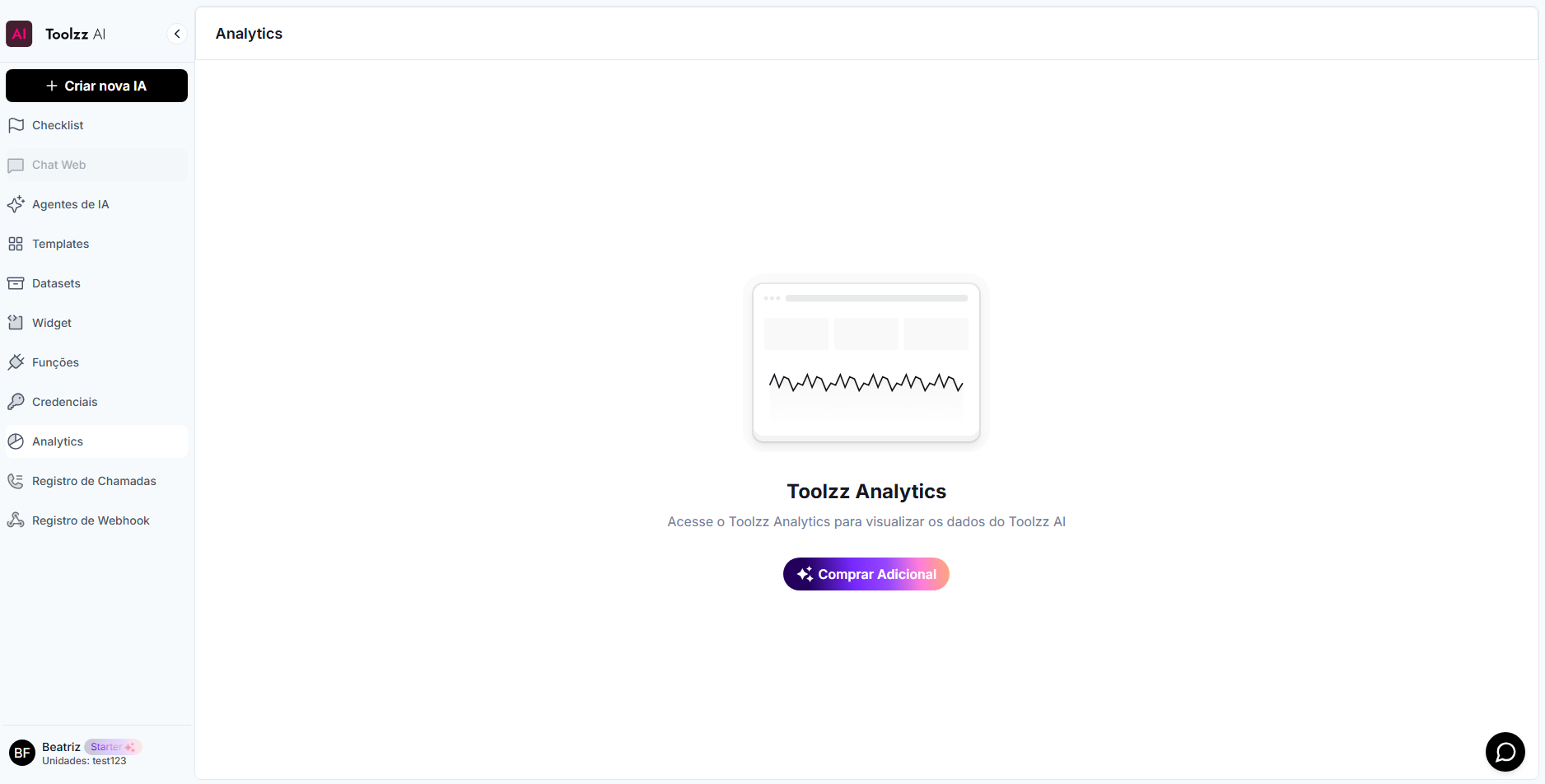
Create a Toolzz Analytics account
Section titled “Create a Toolzz Analytics account”To create an account, the user must go to https://analytics.toolzz.ai/ and click on “Create Account” on the Login screen. Then, the user must complete the following fields in the form.
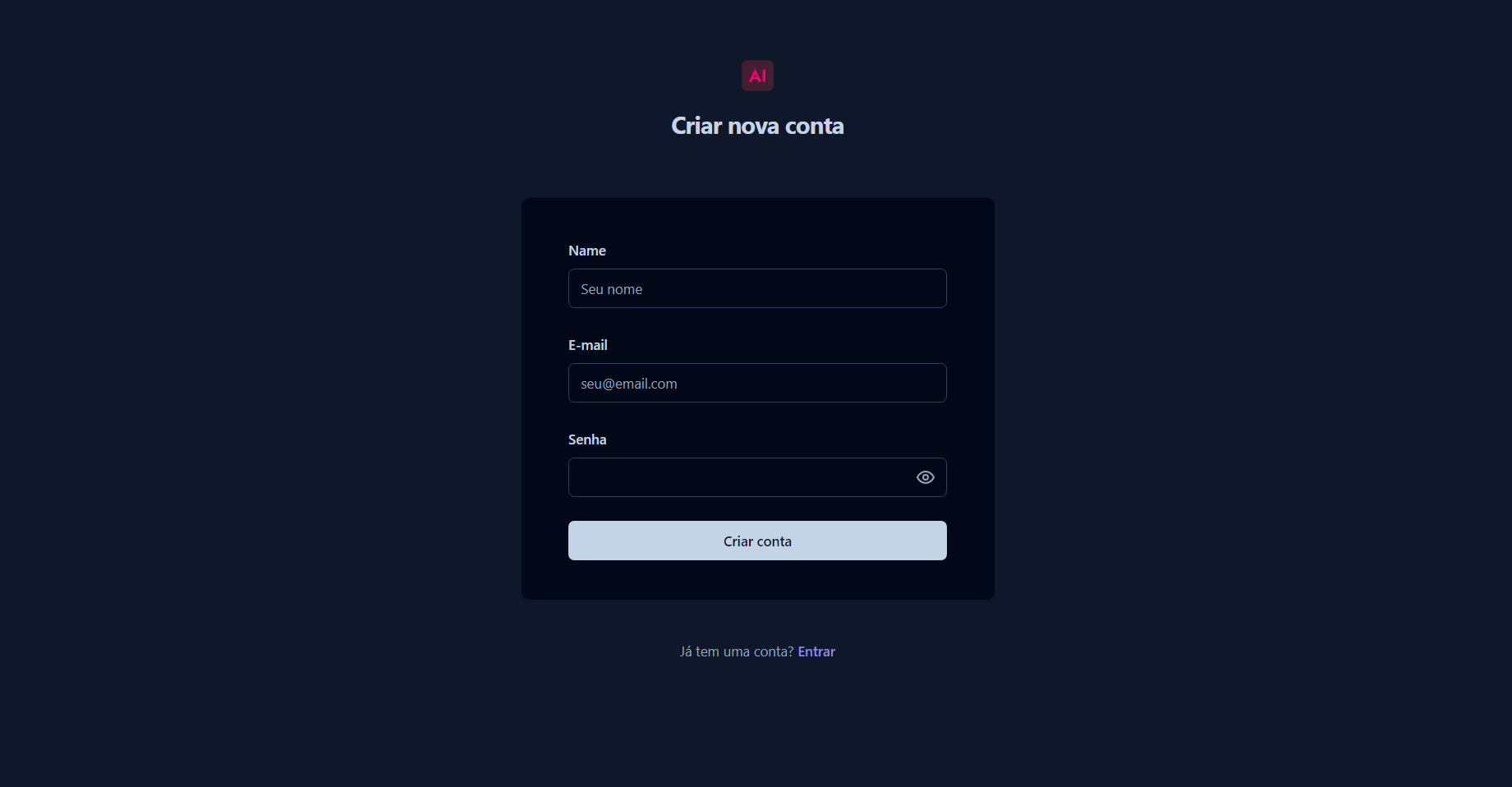
- Name: Field to enter the account name
- Email: Field to enter which email will be linked to the account
- Password: Field to enter the password for account creation
After creating an account, the user can already enter the Login screen and enter the created email and password.
Password Reset
Section titled “Password Reset”If the user forgets the account password, on the login screen, they should click on “Forgot Password”. After that, they will be taken to the “Reset your Password” screen, which will contain a field to enter the email linked to the account.
Create a Project
Section titled “Create a Project”Creating a project in Toolzz Analytics is quite simple! Just follow these steps:
- Enter the tool
- Log in
- In the bottom left side menu, click on “+ New”
- Enter the project name (Example: my-llm-project)
- Click on create
Main Dashboard
Section titled “Main Dashboard”In Analytics, the dashboard is a section that allows a broad view of all information within the created project. It is through the dashboard that the graphs and data for controlling the tool as a whole are displayed.
In addition to viewing this information, the project manager can request the creation of a graph.
Elements displayed on the Dashboard
Section titled “Elements displayed on the Dashboard”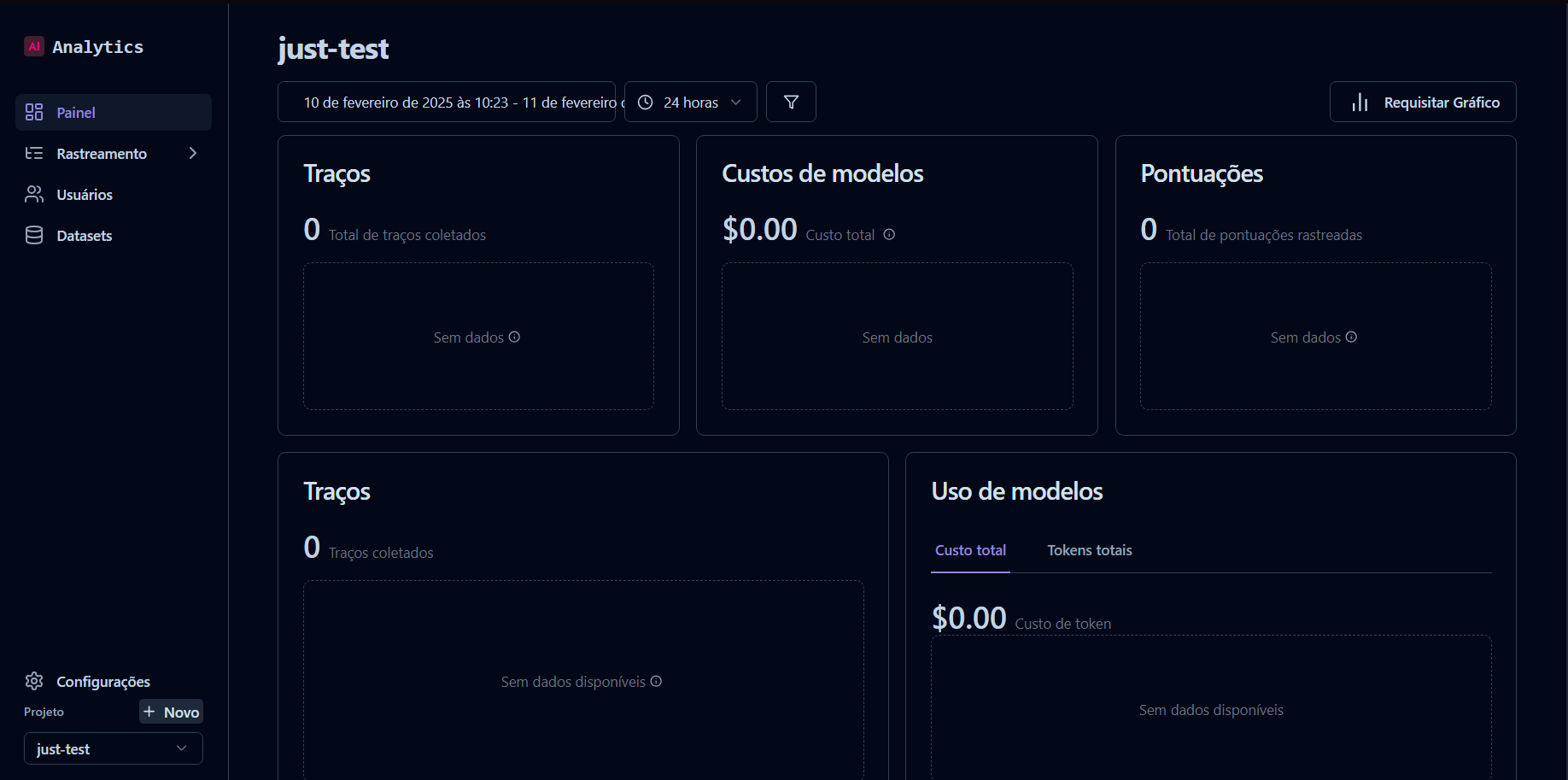
| Element | Description |
|---|---|
| Traces | Total tracked interactions in the system, such as calls or logs processed by the model. Each interaction can be linked to a specific user or event. |
| Model Costs | Total accumulated cost from model usage, based on processed tokens. Usually expressed in dollars (USD). |
| Tokens | Total quantity of processed tokens, representing text units in interactions, such as words or fragments. |
| Scores | Metric for evaluating the quality of model responses, which can be generated automatically or filled in manually. |
| Trace Latencies | Average time and percentiles (50th, 90th, 95th, 99th) for processing each trace, reflecting the system’s speed in handling interactions. |
| Generation Latencies | Time required for the model to generate responses, with percentile analysis to evaluate performance. |
| Model Latencies | Average global response time of the model, segmented by percentiles to measure its efficiency. |
| Consumption per User | Detailed analysis of individual token costs and the number of traces per user, allowing measurement of the impact of each interaction. |
Analytics Tracking Session
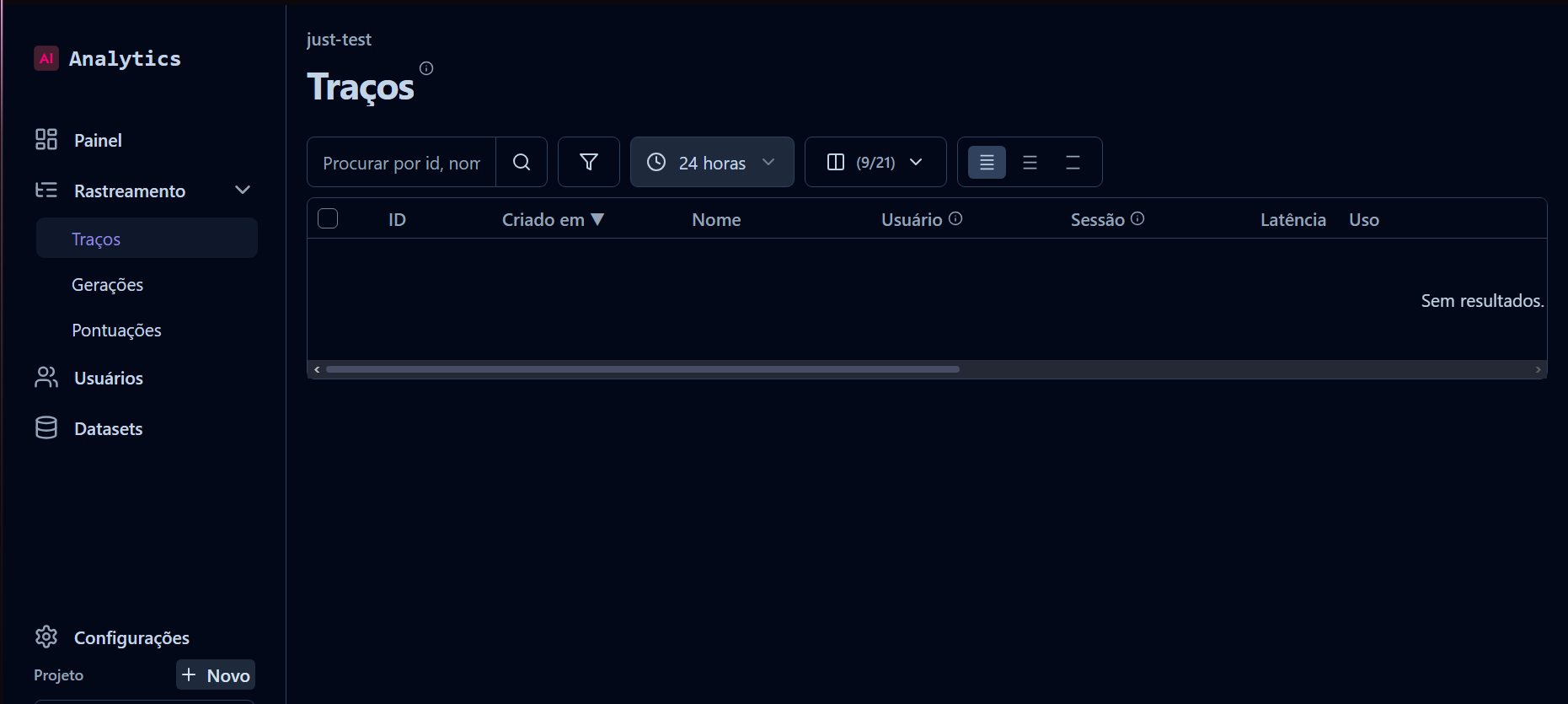
Section titled “Analytics Tracking Session”The tracking session is where the main blocks for obtaining information and details about each response sent by the LLM are located.
Description of Each Block
Section titled “Description of Each Block”- Traces: A trace represents a single function/API call. Traces contain observations of interactions between AI and the user.
- Generations: A generation captures a single LLM call. It is a type of observation that can be nested within a trace.
- Scores: A score evaluation of the quality of model responses, which can be generated automatically or filled in manually. (Note: Original Portuguese doc had a typo here repeating “Generations” description, fixed to match context).
Analytics Users Session
Section titled “Analytics Users Session”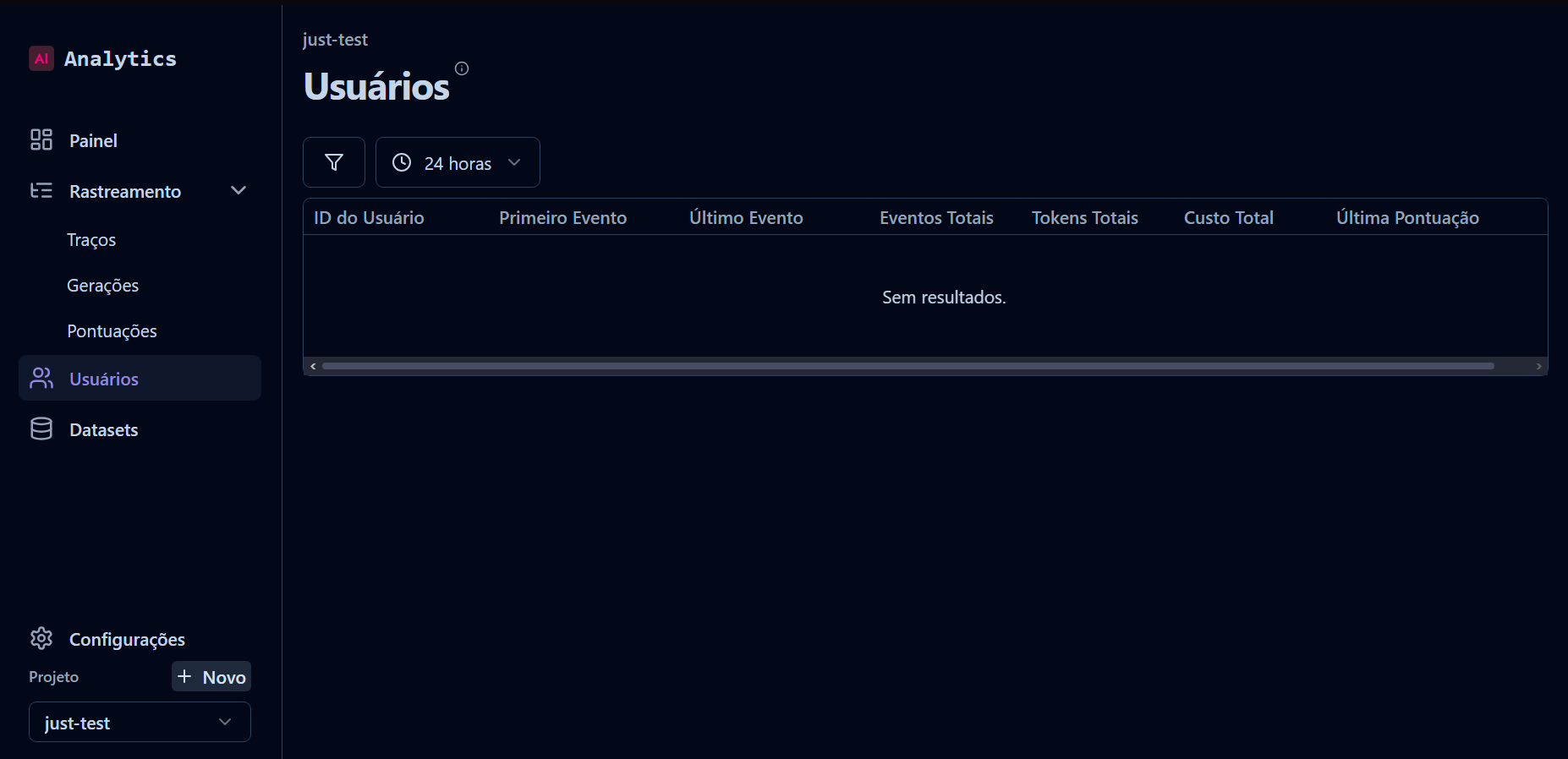
In the users session, it is possible to find attribute data in Analytics for a user by adding a userId to their traces. The user can analyze the following information:
- User ID: Unique identification for each user who interacted with the system.
- First Event: Date and time when the user performed their first interaction with the system.
- Last Event: Date and time of the user’s last interaction.
- Total Events: Total number of interactions or actions performed by the user in the system.
- Total Tokens: Refers to the total tokens (words or parts of words) processed during interactions.
- Total Cost: Accumulated cost associated with the system usage by that user.
- Last Score: Indicates the last score generated in the interaction with the LLM.
Analytics Dataset Session
Section titled “Analytics Dataset Session”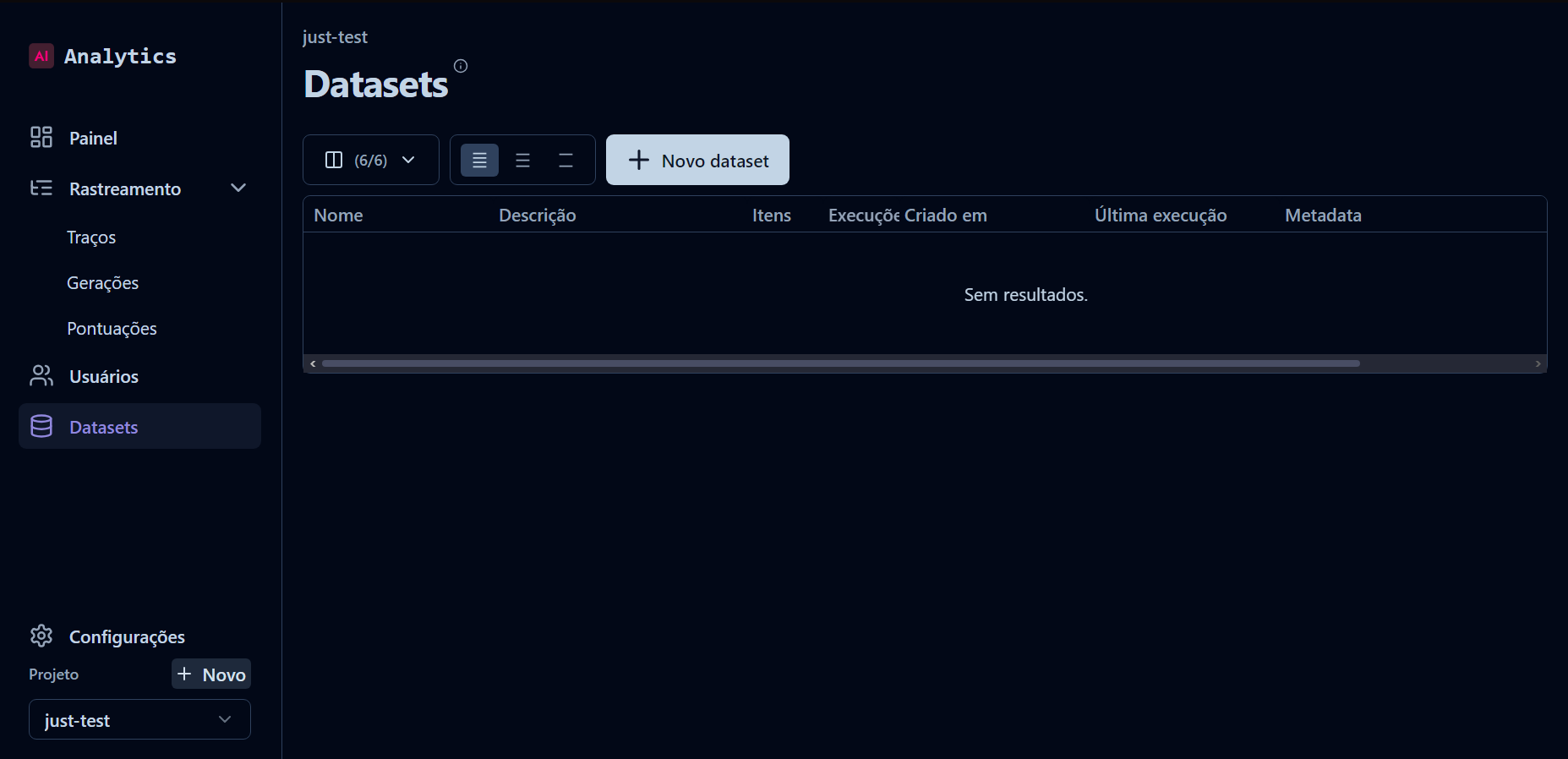
In the Datasets session, which are a collection of inputs (and expected outputs) of an LLM application. The user can use it to test new versions before they are deployed to production. In this session, the user can analyze the following items.
- Name: Name given when creating the dataset.
- Description: A brief summary explaining the purpose, content, or objective of the dataset.
- Items: Total number of records, samples, or entries stored in the dataset.
- Execution: Number of times the dataset was used in processes, such as training or model inferences.
- Created at: Dataset creation date and time.
- Last execution: Date and time of the last time the dataset was used.
- Metadata: Additional information or technical attributes of the dataset, such as structure, format, source, or other relevant metadata for analysis or processing.
Access Keys
Section titled “Access Keys”Within Toolzz AI, integration with the Toolzz Analytics tool is accepted through credentials. To connect Analytics credentials, the user must:
- Enter credentials
- Click on “+ New Credential”
- Select the “Analytics” category
- Fill out the credential form
- Credential connected successfully!
To connect a credential, it is necessary to fill out a form, which has the following fields:
- Credential Name: Field to enter the credential name
- Public Key: Field to enter the project’s public key in Toolzz Analytics
- Secret Key: Field to enter the project’s secret key in Toolzz Analytics
How to fetch Analytics access keys
Section titled “How to fetch Analytics access keys”Once inside the account, to fetch the necessary data to connect the credential, the user must follow these steps:
- Click on “Settings” at the bottom of the side menu
- Go to “API Keys”
- Click on “Create new API key”
- Copy the Secret Key (sk) and Public Key (pk) fields
- Paste the keys into their respective credential fields.
- Analytics credential connected successfully!