Get Credentials by Integration
Endpoint used to get credentials by integration.
Request Example
Section titled “Request Example”curl --request GET \ --url https://chat.api.toolzz.com.br/api/v1/credential/unity/{id}/integration/{integrationId} \ --header 'Authorization: Bearer TOKEN_HERE' \Response Example
Section titled “Response Example”[ { "credentials": { "id": "uuid", "name": "string", "userId": "uuid", "unityId": "uuid", "integrationId": "uuid", "secretId": "uuid", "status": boolean, "virtualKey": "string", "createdAt": "date-time", "updatedAt": "date-time" }, "integration": { "id": "uuid", "name": "string", "iconId": "uuid", "type": "string", "status": boolean, "validationEndpoint": "url", "slug": "string", "form": [ { "name": "string", "type": "string", "label": "string", "maxLenght": "number", "required": boolean } ], "icon": { "id": "uuid", "url": "url", "extension": "string", "size": number } } }]Request description
Section titled “Request description”Access Token
Section titled “Access Token”| Parameter | Type | Description | Required |
|---|---|---|---|
Authorization | String | Access token (“Bearer” must be before the token) | Yes |
URL Parameters (Path)
Section titled “URL Parameters (Path)”| Parameter | Type | Description | Required |
|---|---|---|---|
unitId | String | Unit ID | Yes |
integrationId | String | Credential integration ID | Yes |
Response description
Section titled “Response description”| Parent Object | Key | Type | Description |
|---|---|---|---|
credentials | id | UUID | Unique identifier of the credential (UUID). |
name | String | User-assigned name for the credential. | |
userId | UUID | Owning user ID. | |
unityId | UUID | Organizational unit ID (business unit). | |
integrationId | UUID | Reference ID of the source integration. | |
secretId | UUID | Associated secret key ID in the data vault. | |
status | Boolean | Credential status (true = Active, false = Inactive). | |
virtualKey | String | Internal virtual key (optional). | |
createdAt | String | Creation date (ISO 8601). | |
updatedAt | String | Last update date (ISO 8601). | |
integration | id | UUID | Unique identifier of the integration tool. |
name | String | Official tool name (e.g., Toolzz Chat). | |
iconId | UUID | ID of the associated icon file. | |
type | String | Category (e.g., analytics, crm, marketing). | |
status | Boolean | If the integration is available in the system. | |
validationEndpoint | String | URL to validate the credential via external API. | |
slug | String | Friendly URL identifier (e.g., toolzz-chat). | |
createdAt | String | Integration registration date in the system. | |
updatedAt | String/Null | Date of the last change in the integration definition. | |
integration.form[] | name | String | Technical field name (e.g., api_token). |
type | String | Input type (e.g., string, password). | |
label | String | Name displayed to the user in the interface. | |
maxLenght | String | Maximum character limit. | |
required | Boolean | If the field is required to save. | |
integration.icon | id | UUID | Unique identifier of the icon file. |
institutionId | UUID/Null | Institution ID (if it’s a private icon). | |
type | String | File type (e.g., accountIcon). | |
fileName | String | File name on the server (with hash). | |
internalStorageUrl | URL | Internal access path (private storage). | |
url | URL | Public link/CDN to display the icon. | |
maskName | String/Null | Mask name for the file (if any). | |
extension | String | File extension (e.g., png, svg). | |
size | Number | File size in bytes. | |
numberWords | Null | Legacy field (not used for icons). | |
createdAt | String | Date the icon was uploaded. | |
updatedAt | String/Null | Last update date of the icon. |
Security
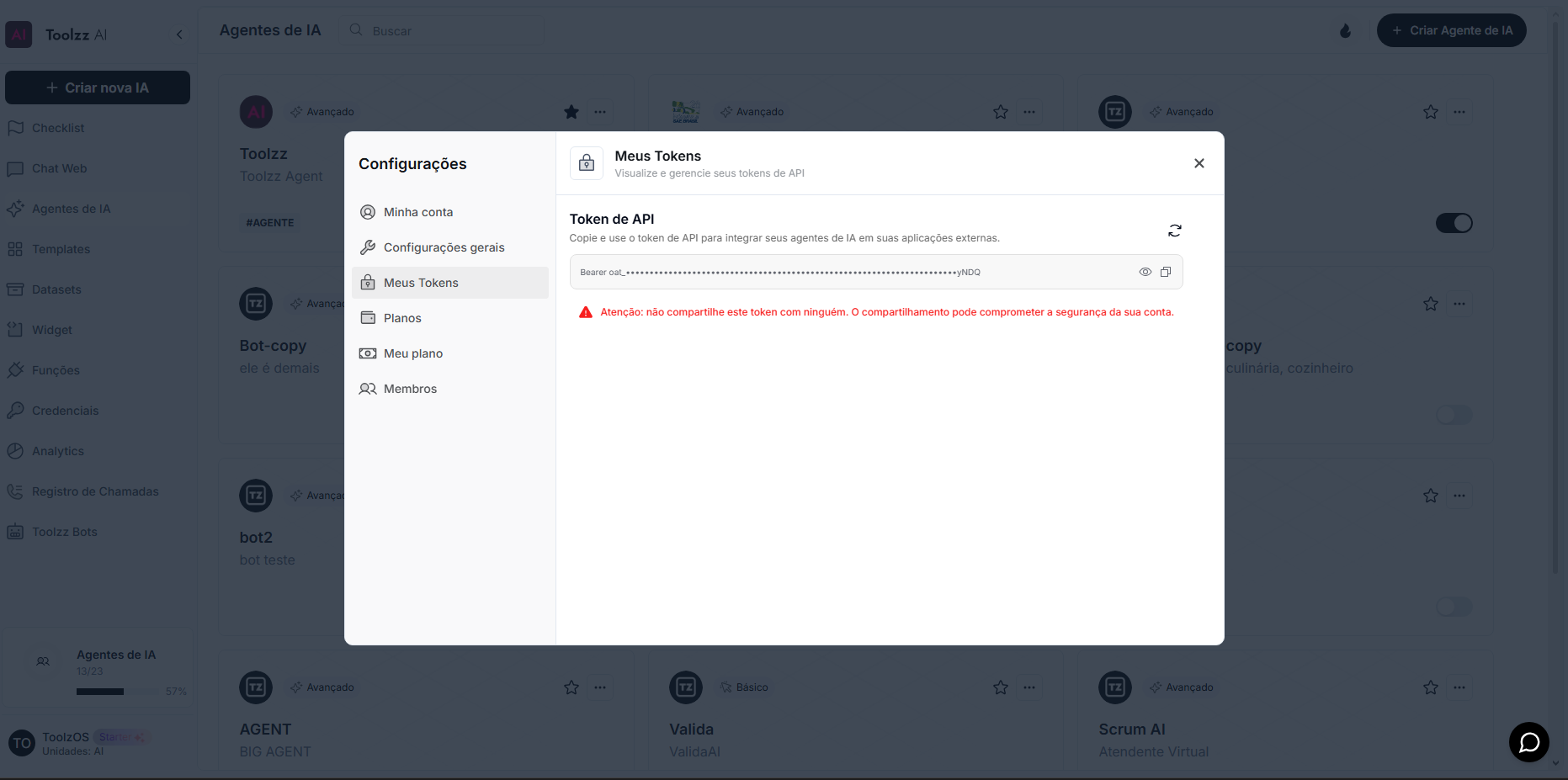
Section titled “Security”To access this endpoint, it is necessary to send a valid access token through the authorization header (Authorization) of the request. Additionally, the API is protected by other security measures to safeguard user data.
To access your access token, follow these steps:
- Log in to the ToolzzAI platform
- Click on “Settings”
- Click on “Access Token”
- Copy the access token