Create Credential
Endpoint used to create a credential.
Request Example
Section titled “Request Example”curl --request POST \ --url https://chat.api.toolzz.com.br/api/v1/credential \ --header 'Authorization: Bearer TOKEN_HERE' \ --header 'Content-Type: application/json' \ --data ' { "name": "<string>", "userId": "uuid", "unityId": "uuid", "integrationId": "uuid", "status": false, "credentials": [ { "api_key": "<string>" } ] }'Response Example
Section titled “Response Example”{ "message": "<string>", "id": "uuid", "name": "<string>", "userId": "uuid", "unityId": "uuid", "integrationId": "uuid", "secretId": "uuid", "status": false, "virtualKey": "<string>", "credentials": {}, "createdAt": "2024-09-03T18:52:29.443Z", "updatedAt": "2024-09-03T18:52:29.443Z", "integration": { "id": "uuid", "name": "<string>", "iconId": "uuid", "type": "<string>", "status": true, "validationEndpoint": "<url>", "slug": "<string>", "form": [ { "name": "<string>", "type": "<string>", "label": "<string>", "maxLenght": "<string>", "required": true } ], "createdAt": "2024-09-03T18:52:29.443Z", "updatedAt": "2024-09-03T18:52:29.443Z", "icon": { "id": "uuid", "institutionId": "uuid", "type": "<string>", "fileName": "<string>", "internalStorageUrl": "<url>", "url": "<url>", "maskName": "<string>", "createdAt": "2024-09-03T18:52:29.443Z", "updatedAt": "2024-09-03T18:52:29.443Z", "extension": "<string>", "size": 123, "numberWords": null } }}Request description
Section titled “Request description”Access Token
Section titled “Access Token”| Parameter | Type | Description | Required |
|---|---|---|---|
Authorization | String | Access token (“Bearer” must be before the token) | Yes |
Body Parameters
Section titled “Body Parameters”| Parameter | Type | Description | Required |
|---|---|---|---|
name | String | Credential identification name in the system. | Yes |
userId | UUID | Unique identifier of the owning user. | Yes |
unityId | UUID | Linked organizational unit identifier. | Yes |
integrationId | UUID | Service provider identifier (OpenAI, Gemini, etc.). | Yes |
status | Boolean | Defines if the credential starts active or inactive. | No |
credentials | Array | List containing technical authentication objects. | Yes |
credentials[].api_key | String | Access key or Token provided by the provider. | Yes* |
Note: The
integrationIdcan be obtained through the GET Integrations endpoint
Response description
Section titled “Response description”| Key | Type | Description |
|---|---|---|
message | String | Status confirmation message of the operation. |
id | UUID | Unique identifier of the newly created credential. |
name | String | Identification name assigned to the credential. |
userId | UUID | Identifier of the user who performed the creation. |
unityId | UUID | Linked organizational unit identifier. |
integrationId | UUID | Linked service provider identifier. |
secretId | UUID | Internal security identifier for storing the key. |
status | Boolean | Current activation status of the credential. |
virtualKey | String | Virtual key generated for internal integration identification. |
credentials | Object | Object containing technical data (returned empty for security reasons after creation). |
createdAt | String | Record creation date and time. |
updatedAt | String | Record last update date and time. |
integration | Object | Service provider details (OpenAI, Gemini, etc.). |
integration.name | String | Integration service name. |
integration.type | String | Service type (e.g., “llm” for language models). |
integration.slug | String | Friendly textual identifier of the provider. |
integration.form | Array | List of technical fields required by the provider for authentication. |
integration.icon | Object | Icon image metadata of the service provider. |
Security
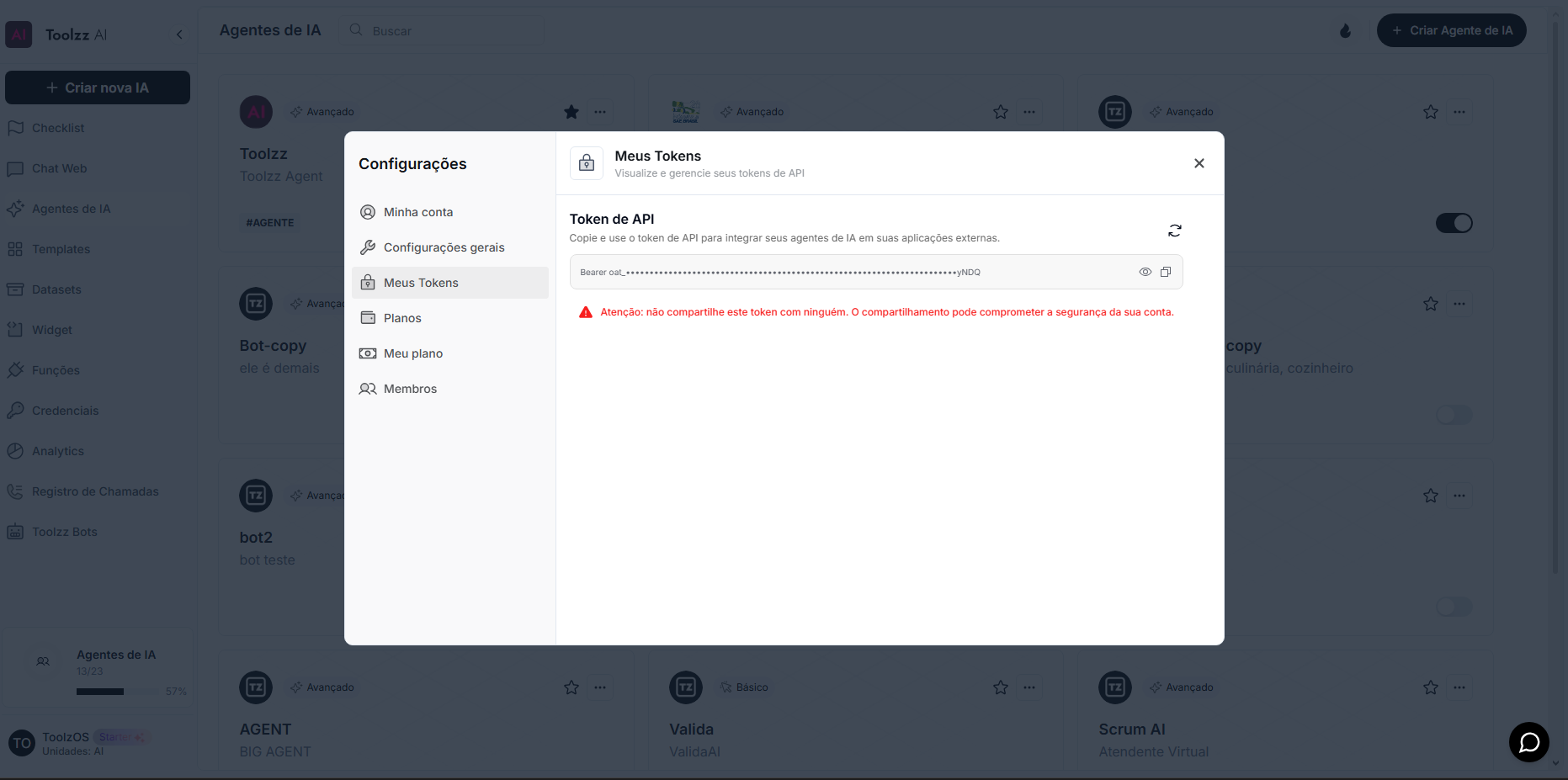
Section titled “Security”To access this endpoint, it is necessary to send a valid access token through the authorization header (Authorization) of the request. Additionally, the API is protected by other security measures to safeguard user data.
To access your access token, follow these steps:
- Log in to the ToolzzAI platform
- Click on “Settings”
- Click on “Access Token”
- Copy the access token