Update Account
Endpoint used to update the account data linked to the institution.
Request Example
Section titled “Request Example”curl --request PUT \ --url https://chat.api.toolzz.com.br/api/v1/auth/update/{id} \ --header 'Authorization: Bearer TOKEN_HERE' \ --header 'Content-Type: application/json' \ --data '{ "name": "name", "lastName": "lastname", "phone": "+5511999999999"}'Response Example
Section titled “Response Example”{ "id": "12345678-abcd-efgh-ijkl-1234567890ab", "name": "John", "lastName": "Doe", "email": "john.doe@provider.com.br", "phone": "11999999999", "imgProfileId": "img_789456", "imgProfile": [], "hasFinishedOnboarding": true}Request description
Section titled “Request description”Access Token
Section titled “Access Token”| Parameter | Type | Description | Required |
|---|---|---|---|
Authorization | String | Access token (“Bearer” must be before the token) | Yes |
Path Parameters
Section titled “Path Parameters”| Parameter | Type | Description | Required |
|---|---|---|---|
id | String | User account ID | Yes |
Body Parameters
Section titled “Body Parameters”| Parameter | Type | Description | Required |
|---|---|---|---|
name | String | User’s name | Yes |
lastName | String | User’s last name | Yes |
phone | String | User’s phone | No |
Response description
Section titled “Response description”| Key | Type | Description | Required |
|---|---|---|---|
id | UUID | Unique and immutable identifier of the user. | Yes |
name | String | User’s first name. | Yes |
lastName | String | Last name or family name. | Yes |
email | String | Email address (must be unique). | Yes |
phone | String | Phone number with area code. | No |
imgProfileId | String | Unique reference to the image in storage. | No |
imgProfile | Array | List of metadata or image paths. | No |
hasFinishedOnboarding | Boolean | Defines if the user has already gone through the initial tutorial. | No |
Security
Section titled “Security”To access this endpoint, it is necessary to send a valid access token through the authorization header (Authorization) of the request. Additionally, the API is protected by other security measures to safeguard user data.
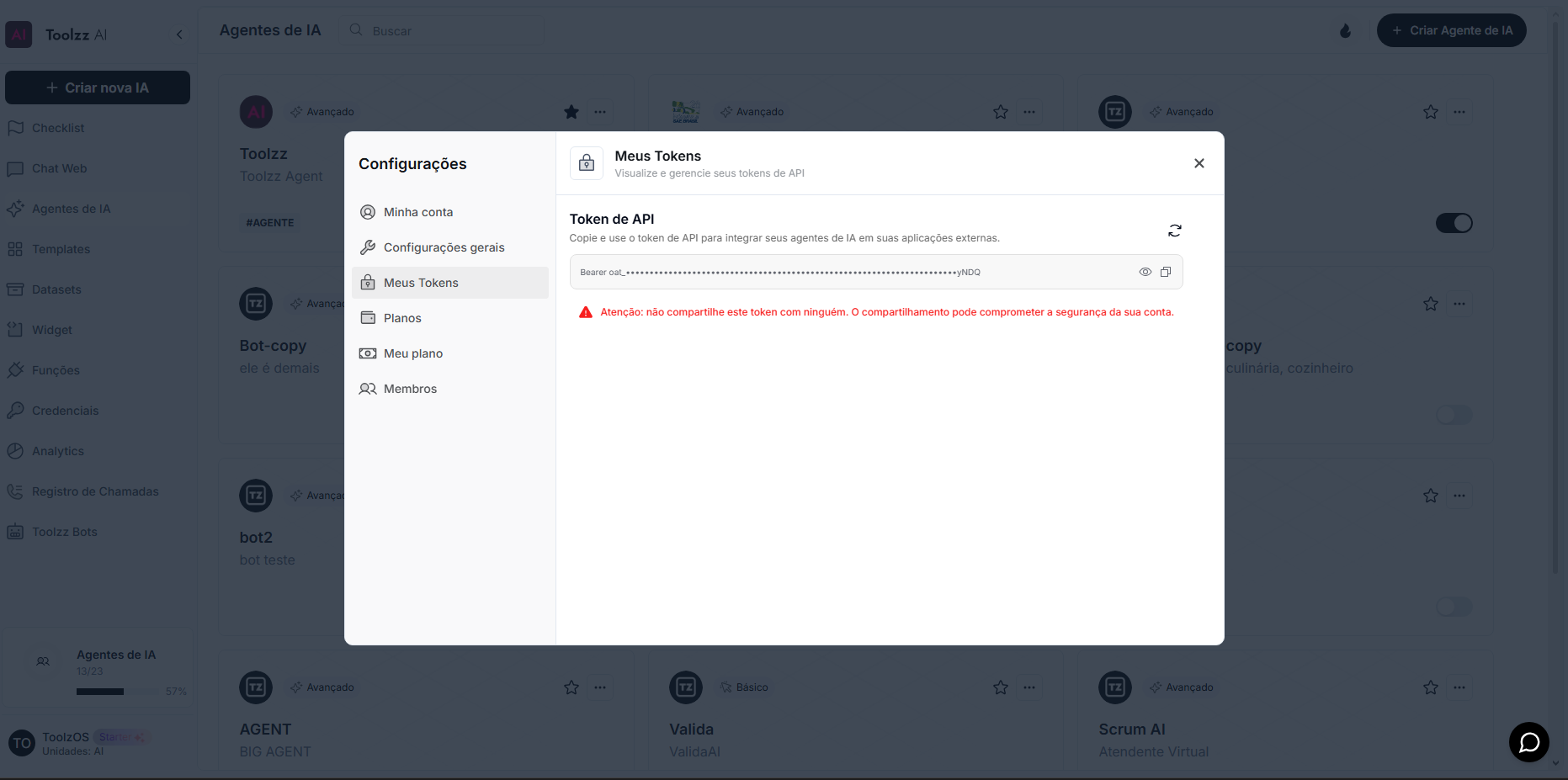
To access your access token, follow these steps:
- Log in to the ToolzzAI platform
- Click on “Settings”
- Click on “Access Token”
- Copy the access token