Create Member
Endpoint used to create a member via API.
Request Example
Section titled “Request Example”curl --request POST \ --url https://chat.api.toolzz.com.br/api/v2/member \ --header 'Authorization: Bearer TOKEN_HERE' \ --header 'Content-Type: application/json' \ --data ' { "name": "<string>", "email": "<string>", "access": "<string>" }'Response Example
Section titled “Response Example”{ "message": "<string>", "id": "<string>", "institutionId": "<string>", "unityId": "<string>", "userId": "<string>", "name": "<string>", "email": "<string>", "access": "<string>", "status": 123, "acceptedAt": "<string>", "createdAt": "<string>", "updatedAt": "<string>", "user": { "id": "<string>", "name": "<string>", "email": "<string>", "avatar": "<string>" }, "avatar": "<string>"}Request description
Section titled “Request description”Access Token
Section titled “Access Token”| Parameter | Type | Description | Required |
|---|---|---|---|
Authorization | String | Access token (“Bearer” must be before the token) | Yes |
Body Parameters
Section titled “Body Parameters”| Parameter | Type | Description | Required |
|---|---|---|---|
name | String | Member name. | Yes |
email | String | Member email. | Yes |
access | String | Member access level. | Yes |
Response description
Section titled “Response description”| Key | Type | Description |
|---|---|---|
message | String | Informative message about the operation status. |
id | UUID | Unique identifier of the member’s link record. |
institutionId | UUID | Identifier of the institution the member belongs to. |
unityId | UUID | Identifier of the linked unit. |
userId | UUID | Global user identifier in the system. |
name | String | User name as registered in the invitation/link. |
email | String | Member’s email address. |
access | String | Assigned permission level (e.g., admin, owner, member). |
status | Number | Numeric status code (e.g., 1 for active, 0 for pending). |
acceptedAt | String | Date and time the invitation was accepted (ISO 8601). |
createdAt | String | Record creation date and time. |
updatedAt | String | Last record modification date and time. |
user | Object | Object containing the consolidated user profile. |
user.id | UUID | Unique user ID within the profile object. |
user.name | String | User’s full name in the global profile. |
user.email | String | User’s primary email in the global profile. |
user.avatar | URL | Direct link to the user’s avatar image. |
avatar | URL | Shortcut to the avatar URL at the root level of the response. |
Security
Section titled “Security”To access this endpoint, it is necessary to send a valid access token through the authorization header (Authorization) of the request. Additionally, the API is protected by other security measures to safeguard user data.
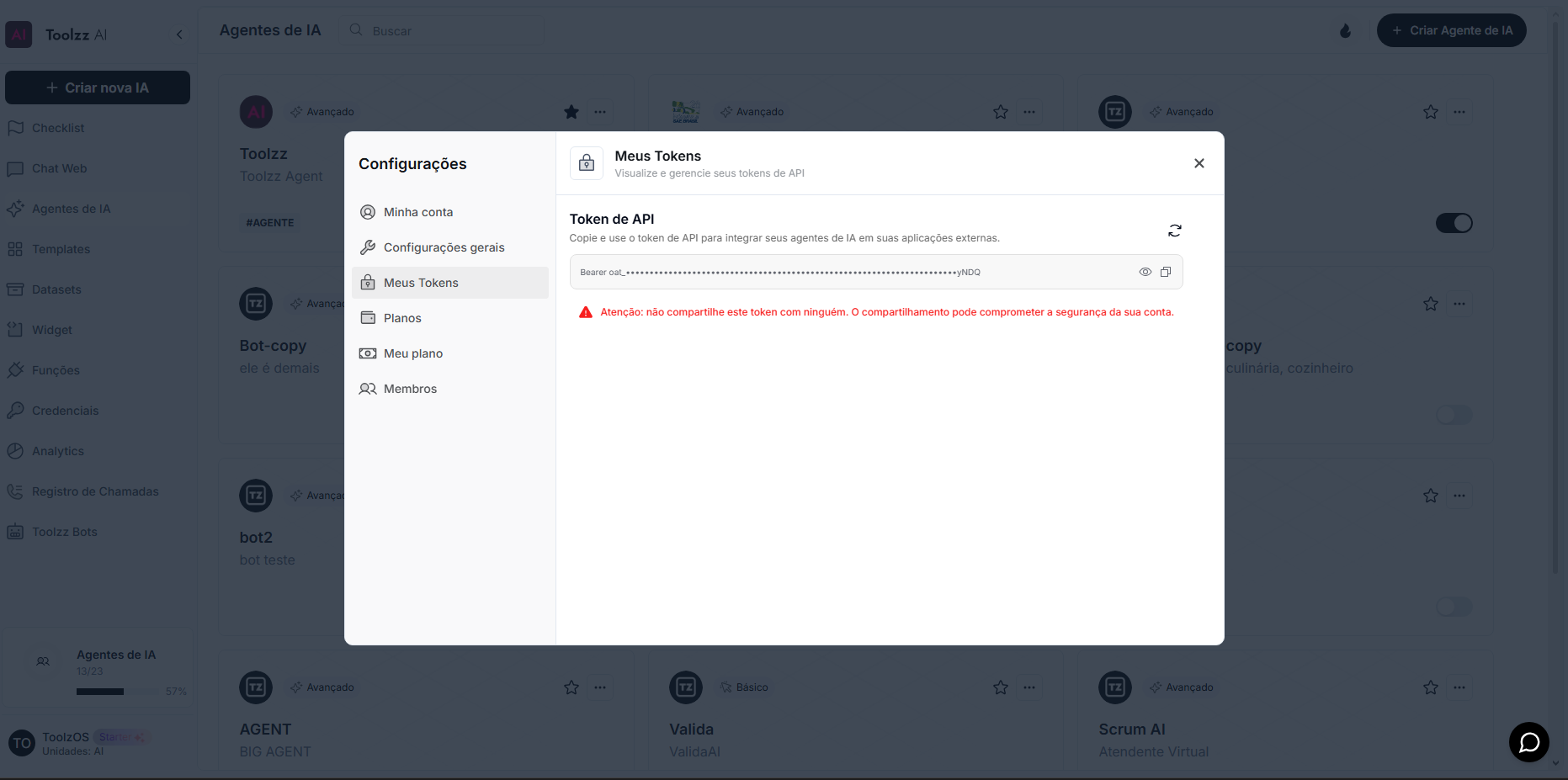
To access your access token, follow these steps:
- Log in to the ToolzzAI platform
- Click on “Settings”
- Click on “Access Token”
- Copy the access token