List Channels
Endpoint used to list channels of a Discord server.
Request Example
Section titled “Request Example”curl --request POST \ --url https://chat.api.toolzz.com.br/api/v1/discord/channels \ --header 'Authorization: Bearer TOKEN_HERE' \ --header 'Content-Type: application/json' \ --data '{ "botToken": "<discord bot token>", "guildId": "<server id>" }'Response Example
Section titled “Response Example”{ "data": [ { "id": "string_digits", "name": "string", "type": 0, "guild_id": "string_digits", "parent_id": "string_digits | null", "topic": "string | null", "nsfw": false, "position": 1, "icon_emoji": { "id": null, "name": "string" } } ]}Request description
Section titled “Request description”Access Token
Section titled “Access Token”| Parameter | Type | Description | Required |
|---|---|---|---|
Authorization | String | Access token (“Bearer” must be before the token) | Yes |
Body Parameters
Section titled “Body Parameters”| Parameter | Type | Description | Required |
|---|---|---|---|
botToken | String | Secret token (Bot Token) obtained from the Discord Developer Portal. | Yes |
guildId | String | Numeric ID (Snowflake) of the Discord server. | Yes |
Response description
Section titled “Response description”| Key | Type | Description |
|---|---|---|
data[] | Array | List of objects containing the server channels and categories. |
id | String | Snowflake ID (numeric) of the channel or category. |
name | String | Visible name of the channel or category. |
type | Number | Resource type: 0 (Text), 2 (Voice), 4 (Category). |
guild_id | String | ID of the server to which this channel belongs. |
position | Number | Display order in the Discord sidebar. |
parent_id | String/Null | ID of the parent category (returns null if it is a category). |
topic | String/Null | Description or topic defined for the text channel. |
nsfw | Boolean | Indicates if the channel has age restriction (Not Safe For Work). |
last_message_id | String/Null | ID of the last message sent in the channel. |
rate_limit_per_user | Number | ”Slow Mode” time in seconds configured in the channel. |
icon_emoji | Object | Object containing the custom channel emoji (id and name). |
bitrate | Number | Bitrate (only for voice channels, e.g., 64000). |
user_limit | Number | Maximum user limit (only for voice channels). |
permission_overwrites | Array | List of specific permissions applied to roles or users in the channel. |
flags | Number | Internal Discord configuration flags. |
Security
Section titled “Security”To access this endpoint, it is necessary to send a valid access token through the authorization header (Authorization) of the request. Additionally, the API is protected by other security measures to safeguard user data.
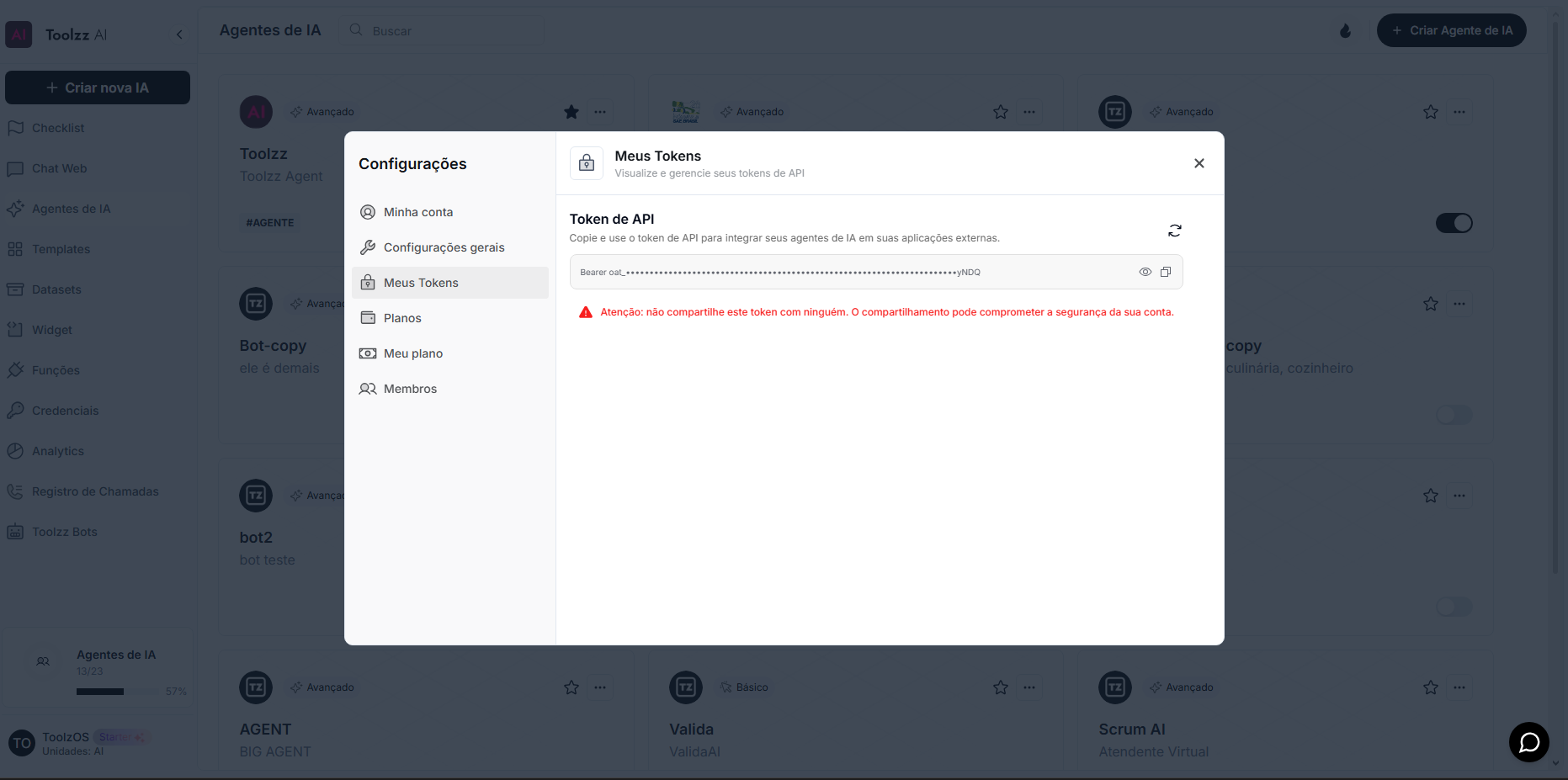
To access your access token, follow these steps:
- Log in to the ToolzzAI platform
- Click on “Settings”
- Click on “Access Token”
- Copy the access token