Create Google Calendar Function
Endpoint used to create a Google Calendar function.
Request Example
Section titled “Request Example”curl --request POST \ --url https://chat.api.toolzz.com.br/api/v1/functions/ \ --header 'Authorization: Bearer TOKEN_HERE' \ --header 'Content-Type: application/json' \ --data '{ "name": "string", "description": "string_prompt", "iconFileId": null, "outputs": [], "googleCalendar": { "googleId": "string_digits", "calendarId": "email_address", "timezone": "string_timezone", "notificationContent": "string", "googleUser": { "id": "string_digits", "email": "email_address", "verified_email": true, "name": "string", "given_name": "string", "family_name": "string", "picture": "url", "hd": "string_domain" }, "googleToken": "oauth_access_token" }, "type": "google-calendar", "userId": "uuid", "unityId": "uuid"}'Response Example
Section titled “Response Example”{ "id": "uuid", "institutionId": "uuid", "userId": "uuid", "unityId": "uuid", "code": "string", "description": "string", "iconFileId": "string", "status": true, "name": "string", "color": "string", "outputs": [], "isActivated": true, "type": "google-calendar", "googleCalendarPlugin": [ { "id": "uuid", "googleId": "string_digits", "calendarId": "email@domain.com", "timezone": "string_timezone", "pluginId": "uuid", "notificationType": null, "notificationContentType": null, "notificationContent": null, "notificationDelayMs": 0, "notificationWaitForSpeech": 0, "createdAt": "iso-date", "updatedAt": "iso-date", "googleUser": { "name": "string", "given_name": "string", "family_name": "string", "picture": "url", "email": "email@domain.com", "hd": "string" }, "googleToken": "string_token" } ], "discordPlugin": [], "telegramPlugin": []}Request description
Section titled “Request description”Access Token
Section titled “Access Token”| Parameter | Type | Description | Required |
|---|---|---|---|
Authorization | String | Access token (“Bearer” must be before the token) | Yes |
Body Parameters
Section titled “Body Parameters”| Category | Key | Type | Description | Required |
|---|---|---|---|---|
| General | name | String | Identifier name of the integration tool. | Yes |
description | String | Prompt/Instruction that guides the AI on the purpose of the function. | Yes | |
iconFileId | Null/UUID | File identifier for a custom icon. | No | |
outputs | Array | List of expected output variables (usually []). | No | |
type | String | Technical type of the integration (fixed: google-calendar). | Yes | |
userId | UUID | Unique user identifier in the system. | Yes | |
unityId | UUID | Unique organizational unit identifier. | Yes | |
googleCalendar | Object | Connection data with the Google API: | Yes | |
googleCalendar.googleId | String | Unique identification ID of the Google account. | Yes | |
googleCalendar.calendarId | String | E-mail or target calendar ID. | No | |
googleCalendar.timezone | String | Calendar timezone (e.g., America/Sao_Paulo). | No | |
googleCalendar.notificationContent | String | Text template for event notifications. | No | |
googleCalendar.googleToken | String | OAuth2 access token (Access/Refresh Token). | Yes | |
| Profile | googleCalendar.googleUser | Object | Profile information of the authenticated user: | Yes |
googleUser.id | String | Internal Google profile ID. | Yes | |
googleUser.email | String | E-mail of the linked Google account. | Yes | |
googleUser.verified_email | Boolean | Account verification status on Google. | Yes | |
googleUser.name | String | User’s full name. | Yes | |
googleUser.given_name | String | User’s first name. | Yes | |
googleUser.family_name | String | User’s last name. | Yes | |
googleUser.picture | URL | URL of the user’s profile image. | No | |
googleUser.hd | String | Organization domain (e.g., company.com). | No |
Response description
Section titled “Response description”| Category | Key | Type | Description |
|---|---|---|---|
| General | id | UUID | Unique plugin identifier in the database. |
institutionId | UUID | Unique identifier of the institution owning the plugin. | |
userId | UUID | Unique identifier of the user who configured the integration. | |
unityId | UUID | Linked organizational unit identifier. | |
code | String | Technical name or internal identifier of the plugin logic. | |
description | String | Instructions (prompt) that guide the AI on how to use the function. | |
iconFileId | String | Icon file identifier (if any). | |
status | Boolean | Defines if the plugin is available in the system (true/false). | |
name | String | Friendly name of the tool (e.g., “Google Calendar”). | |
color | String | Color identifier for interface display (e.g., gray). | |
outputs | Array | List of output variables generated by the plugin (empty by default). | |
isActivated | Boolean | Indicates if the integration is active and ready for use. | |
type | String | Category of the integration (always google-calendar in this case). | |
| Instance | googleCalendarPlugin[] | Array[Obj] | List of specific calendar settings: |
googleCalendarPlugin[].id | UUID | Unique identifier of this calendar instance configuration. | |
googleCalendarPlugin[].googleId | String | Unique snowflake/numeric ID of the Google account. | |
googleCalendarPlugin[].calendarId | String | Target calendar e-mail (official ID in Google Calendar). | |
googleCalendarPlugin[].timezone | String | Calendar timezone (e.g., America/Sao_Paulo). | |
googleCalendarPlugin[].pluginId | UUID | Foreign key referencing the main plugin id. | |
| Notifications | notificationType | Null/Str | Configured notification type (Push, Webhook, etc.). |
notificationContentType | Null/Str | Content type sent in the notification. | |
notificationContent | Null/Str | Fixed content or notification template. | |
notificationDelayMs | Number | Delay in milliseconds to trigger the notification. | |
notificationWaitForSpeech | Number | Waiting time for speech before proceeding (in ms). | |
| Timestamps | createdAt | String | Creation date and time (ISO 8601). |
updatedAt | String | Last update date and time (ISO 8601). | |
| Google Profile | googleUser | Object | Metadata extracted from the authenticated Google account: |
googleUser.name | String | Full name displayed on the Google profile. | |
googleUser.given_name | String | User’s first name. | |
googleUser.family_name | String | User’s last name. | |
googleUser.picture | URL | Public link to the Google profile photo. | |
googleUser.email | String | E-mail of the authenticated Google account. | |
googleUser.hd | String | Organization domain (Hosted Domain, e.g., toolzz.me). | |
| Security | googleToken | String | OAuth2 token (Access/Refresh) used in API communication. |
| Others | discordPlugin[] | Array | List of linked Discord plugins (empty in this context). |
telegramPlugin[] | Array | List of linked Telegram plugins (empty in this context). |
Security
Section titled “Security”To access this endpoint, it is necessary to send a valid access token through the authorization header (Authorization) of the request. Additionally, the API is protected by other security measures to safeguard user data.
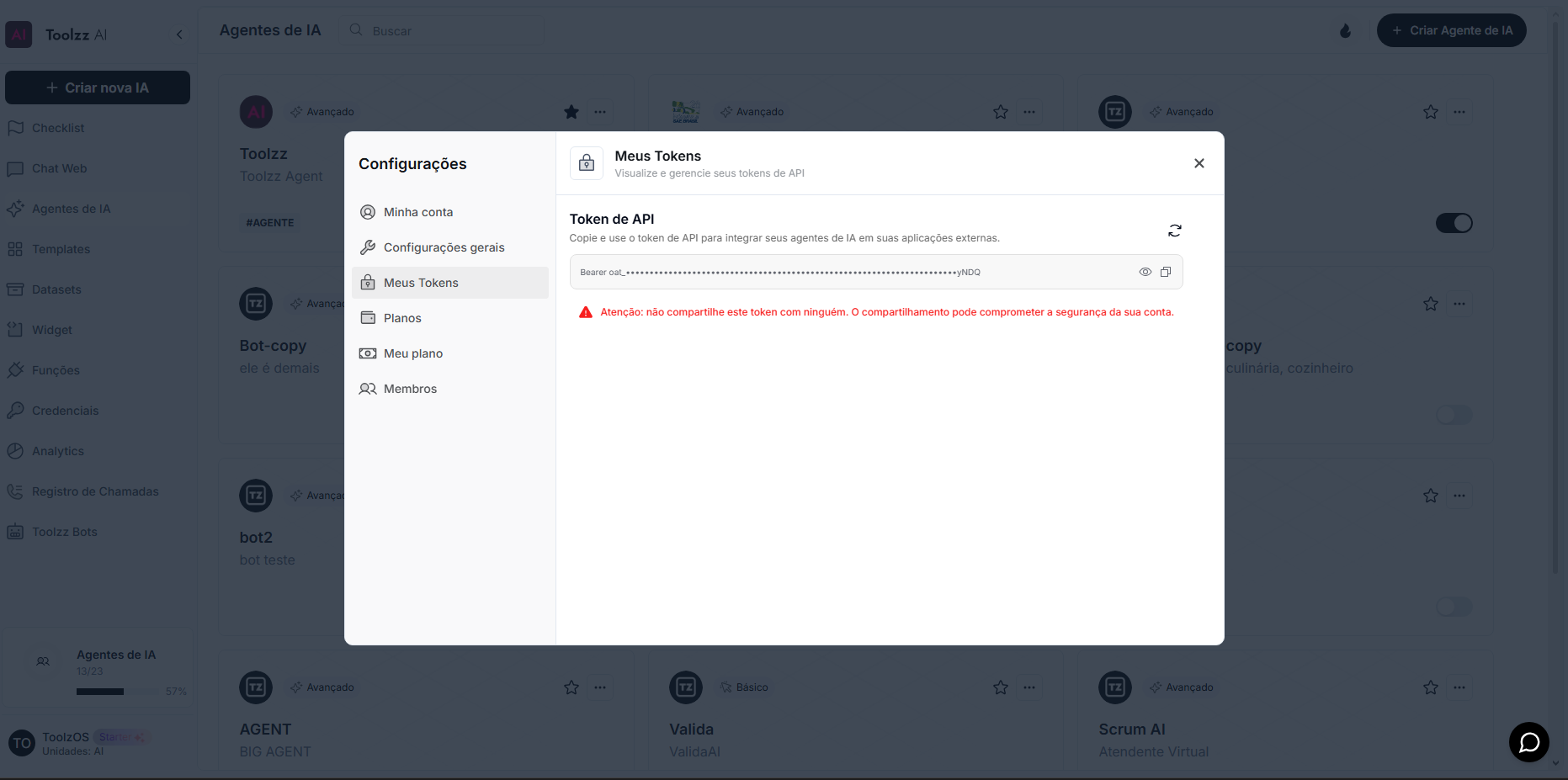
To access your access token, follow these steps:
- Log in to the ToolzzAI platform
- Click on “Settings”
- Click on “Access Token”
- Copy the access token