Create Function
Endpoint used to create a custom function.
Request Example
Section titled “Request Example”curl --request POST \ --url https://chat.api.toolzz.com.br/api/v1/functions/ \ --header 'Authorization: Bearer TOKEN_HERE' \ --header 'Content-Type: application/json' \ --data '{ "name": "string", "description": "string", "code": "string", "iconFileId": "uuid", "iconFile": "string", "userId": "uuid", "outputs": [ { "property": "string", "type": "string", "description": "string", "required": false, "creating": false } ], "unityId": "uuid"}'Response Example
Section titled “Response Example”{ "id": "uuid", "institutionId": "uuid", "userId": "uuid", "unityId": "uuid", "code": "string", "description": "string", "iconFileId": "uuid", "status": true, "name": "string", "pluginIcon": { "id": "uuid", "institutionId": "uuid", "type": "string", "fileName": "string", "internalStorageUrl": "string", "url": "string", "maskName": "string", "createdAt": "date", "updatedAt": "date", "extension": "string", "size": 123, "numberWords": null }, "color": "string", "outputs": [ { "required": false, "id": "uuid", "type": "string", "description": "string", "customFunctionId": "uuid", "property": "string" }, { "required": false, "id": "uuid", "type": "string", "description": "string", "customFunctionId": "uuid", "property": "string" } ], "isActivated": true, "type": null, "googleCalendarPlugin": [], "discordPlugin": [], "telegramPlugin": []}Request description
Section titled “Request description”Access Token
Section titled “Access Token”| Parameter | Type | Description | Required |
|---|---|---|---|
Authorization | String | Access token (“Bearer” must be before the token) | Yes |
Body Parameters
Section titled “Body Parameters”| Parameter | Type | Description | Required |
|---|---|---|---|
name | String | Identification name for the custom function. | Yes |
description | String | Text describing what the function does and when it should be called. | Yes |
code | String | The JavaScript (asynchronous) code that will be executed by the engine. | Yes |
iconFileId | UUID | Unique identifier of the icon file already existing in the system. | No |
iconFile | String | URL or reference path for the icon file. | No |
userId | UUID | Identifier of the user creating the function. | Yes |
unityId | UUID | Identifier of the organizational unit to which the function belongs. | Yes |
outputs | Array | List of objects that define the input/output parameters of the function. | No |
outputs[].property | String | Name of the variable that will be accessed via args in the code. | Yes* |
outputs[].type | String | Expected data type (e.g., number, string). | Yes* |
outputs[].description | String | Brief explanation about the parameter. | No |
outputs[].required | Boolean | Defines if the parameter is mandatory in the function execution. | No |
outputs[].creating | Boolean | Internal flag for state control during creation. | No |
Response description
Section titled “Response description”| Key | Type | Description |
|---|---|---|
id | UUID | Unique identifier of the main record. |
institutionId | UUID | Owner institution identifier. |
userId | UUID | Creating user identifier. |
unityId | UUID | Organizational unit identifier. |
code | String | Script or source code of the custom function. |
description | String | Purpose description of the plugin/function. |
iconFileId | UUID | Reference to the icon file ID. |
status | Boolean | Defines if the record is active in the system. |
name | String | Function identification name. |
color | String | Color reference for visual interface. |
isActivated | Boolean | Indicates if the plugin is enabled for immediate use. |
type | Null | Reserved field for future typing. |
pluginIcon | Object | Object with icon metadata (contains: id, url, size, createdAt, etc.). |
pluginIcon.url | String | Public link for viewing the icon image. |
pluginIcon.extension | String | File extension (e.g., “jpeg”, “png”). |
pluginIcon.size | Number | Icon file size in bytes. |
outputs | Array | List of objects defining the output variables. |
outputs[].id | UUID | Unique identifier of the output parameter. |
outputs[].property | String | Name of the variable used in the code. |
outputs[].type | String | Expected data type (e.g., “number”, “string”). |
outputs[].required | Boolean | Defines if filling this field is mandatory. |
googleCalendarPlugin | Array | List of settings for Google Calendar integration. |
discordPlugin | Array | List of settings for Discord integration. |
telegramPlugin | Array | List of settings for Telegram integration. |
Security
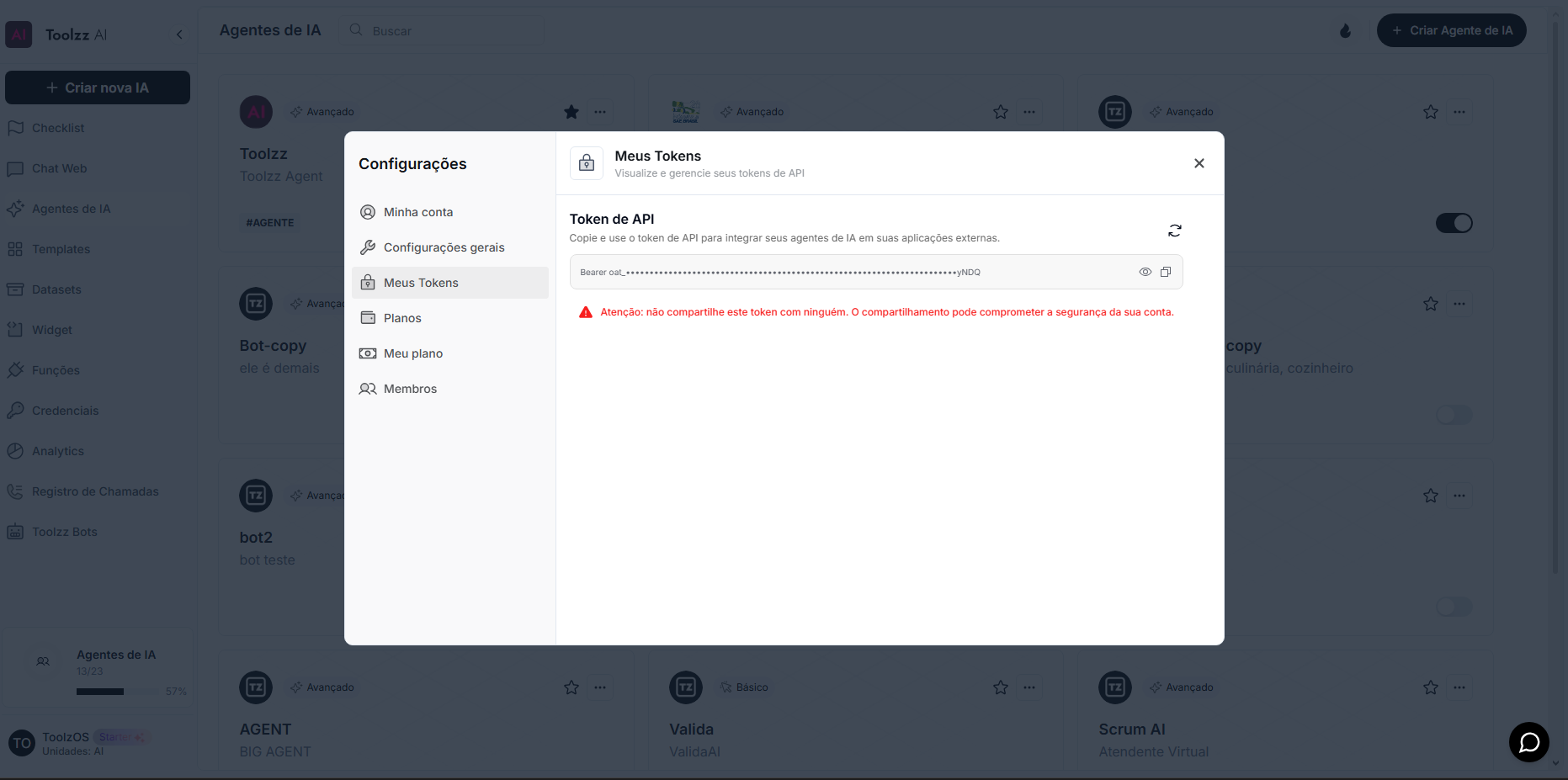
Section titled “Security”To access this endpoint, it is necessary to send a valid access token through the authorization header (Authorization) of the request. Additionally, the API is protected by other security measures to safeguard user data.
To access your access token, follow these steps:
- Log in to the ToolzzAI platform
- Click on “Settings”
- Click on “Access Token”
- Copy the access token